Creating single node, VPS kubernetes cluster
Best approach
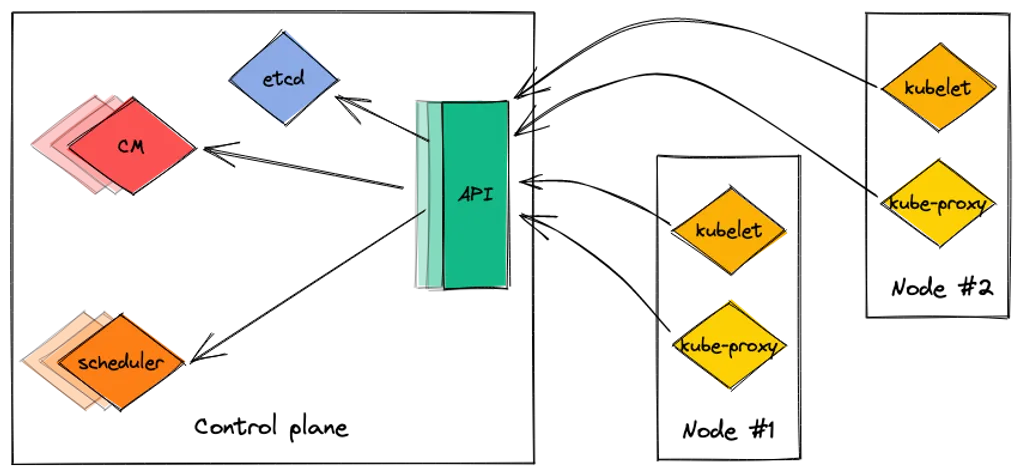
You will get best of k8s only if you use Control Plane <-> n nodes relation. When one node becomes unresponsive, other nodes will share the workload.
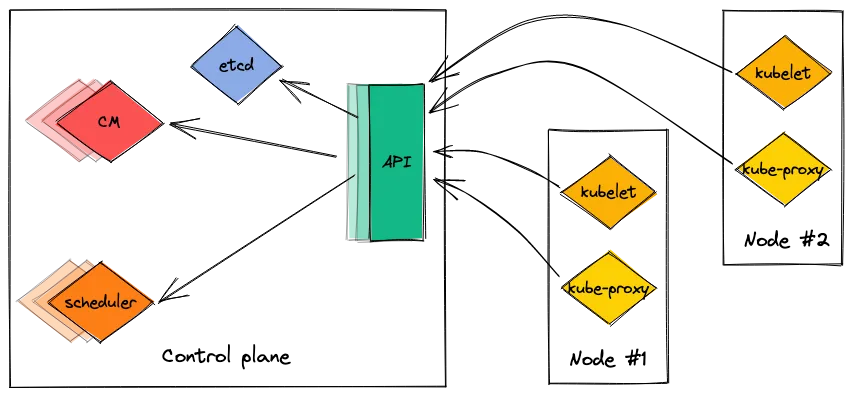
kube-controller-manager is responsible for detecting inoperative nodes
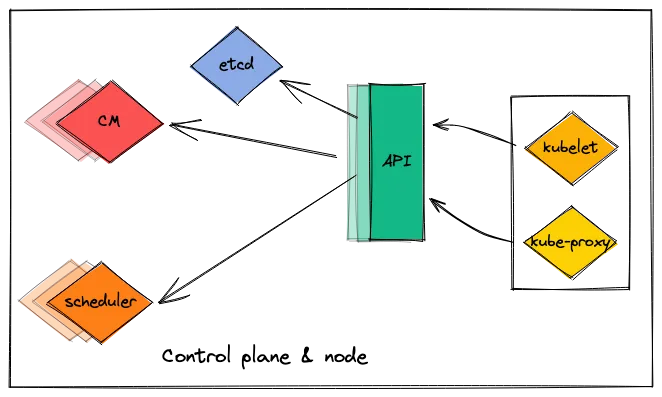
Single node cluster on one machine
In that scenario one machine hosts both control plane and node.
⚠️ Warning: In case of high workloads, you may lose ability to control your cluster since administration (control plane) and execution (node) is handled by one machine
So here comes the question. Why should we bother?
When you have some experience with minikube, as a next step I would recommend deploying this scenario, with a simple service that serves some content: blog or some REST API or both.
But what is most important: Knowledge gained here is applicable for multi-node environments.
Of course, you may also utilize GKE, AKS and such like, but that come at a cost. If you are curious, check GKE or AKS pricing.
Prerequisites
ℹ️️ NOTE: This article assumes that:
- docker is already installed on the machine,
- Ubuntu machine is used,
- you have a domain with correctly defined A record
Installing kubernetes
As official docs states:
Get needed packages:
sudo apt-get update
sudo apt-get install -y apt-transport-https ca-certificates curl
Download public signing key:
sudo curl -fsSLo /usr/share/keyrings/kubernetes-archive-keyring.gpg https://packages.cloud.google.com/apt/doc/apt-key.gpgAdd kubernetes apt repository:
echo "deb [signed-by=/usr/share/keyrings/kubernetes-archive-keyring.gpg] https://apt.kubernetes.io/ kubernetes-xenial main" | sudo tee /etc/apt/sources.list.d/kubernetes.listGet kubeadm, kubelet and kubectl and prevent them from updating:
sudo apt-get update
sudo apt-get install -y kubelet kubeadm kubectl
sudo apt-mark hold kubelet kubeadm kubectl
Control plane init
sudo kubeadm init --pod-network-cidr=10.244.0.0/16 --apiserver-advertise-address=$(curl ifconfig.me)—apiserver-advertise-address value is your external IP address.
In case:
[ERROR CRI]: container runtime is not running
appears, remove containerd daemon configuration:
sudo rm /etc/containerd/config.toml
sudo systemctl restart containerd
sudo kubeadm init --pod-network-cidr=10.244.0.0/16 --apiserver-advertise-address=$(curl ifconfig.me)
or delete line:
disabled_plugins = ["cri"]`from /etc/containerd/config.toml.
When kubeadm init finishes, perform suggested steps:
mkdir -p $HOME/.kube
sudo cp -i /etc/kubernetes/admin.conf $HOME/.kube/config
sudo chown $(id -u):$(id -g) $HOME/.kube/config
Tainting control plane
Kubernetes by default will not act as a worker. We can force that behaviour with:
kubectl taint nodes --all node-role.kubernetes.io/control-plane-Install Helm
Helm is a package manager for kubernetes. Is simplifies by far description of a deployment.
curl https://baltocdn.com/helm/signing.asc | gpg --dearmor | sudo tee /usr/share/keyrings/helm.gpg > /dev/null
sudo apt-get install apt-transport-https --yes
echo "deb [arch=$(dpkg --print-architecture) signed-by=/usr/share/keyrings/helm.gpg] https://baltocdn.com/helm/stable/debian/ all main" | sudo tee /etc/apt/sources.list.d/helm-stable-debian.list
sudo apt-get update
sudo apt-get install helm
More info at: https://helm.sh/docs/intro/install/#from-apt-debianubuntu
Install flannel
Flannel is responsible for a cluster networking.
kubectl apply -f https://raw.githubusercontent.com/flannel-io/flannel/master/Documentation/kube-flannel.ymlAt this point, our pods should look like:
kubectl get po -A

NAMESPACE      NAME                                               READY   STATUS    RESTARTS   AGE
kube-flannel   kube-flannel-ds-l98tw                              1/1     Running   0          15s
kube-system    coredns-565d847f94-vjzzl                           1/1     Running   0          3m45s
kube-system    coredns-565d847f94-vpfxc                           1/1     Running   0          3m45s
kube-system    etcd-ubuntu-kubernetes-worker                      1/1     Running   0          3m58s
kube-system    kube-apiserver-ubuntu-kubernetes-worker            1/1     Running   0          3m58s
kube-system    kube-controller-manager-ubuntu-kubernetes-worker   1/1     Running   0          4m
kube-system    kube-proxy-49qxd                                   1/1     Running   0          3m45s
kube-system    kube-scheduler-ubuntu-kubernetes-worker            1/1     Running   0          3m57s
As you can see, kube-flannel-ds-l98tw pod in kube-flannel namespace is operational.
Install ingress-nginx controller
helm upgrade --install ingress-nginx ingress-nginx \
  --repo https://kubernetes.github.io/ingress-nginx \
  --namespace ingress-nginx --create-namespace
More info at: https://kubernetes.github.io/ingress-nginx/deploy/
Quick sanity check:
kubectl get po -n ingress-nginx

NAME                                        READY   STATUS    RESTARTS   AGE
ingress-nginx-controller-8574b6d7c9-l69sx   1/1     Running   0          33s
Instal MetalLB
helm repo add metallb https://metallb.github.io/metallb
helm install metallb metallb/metallb --create-namespace --namespace metallb-system
More info at: https://metallb.universe.tf/installation/
Define IPAddressPool
Create metallb-ip-address-pool.yaml with the following content:
apiVersion: metallb.io/v1beta1
kind: IPAddressPool
metadata:
  name: my-pool
  namespace: metallb-system
spec:
  addresses:
    - YOUR_PUBLIC_IP/32
and apply it via:
kubectl apply -f metallb-ip-address-pool.yamlSanity check:
kubectl get po -A

NAMESPACE        NAME                                               READY   STATUS    RESTARTS   AGE
ingress-nginx    ingress-nginx-controller-8574b6d7c9-l69sx          1/1     Running   0          10m
kube-flannel     kube-flannel-ds-l98tw                              1/1     Running   0          13m
kube-system      coredns-565d847f94-vjzzl                           1/1     Running   0          17m
kube-system      coredns-565d847f94-vpfxc                           1/1     Running   0          17m
kube-system      etcd-ubuntu-kubernetes-worker                      1/1     Running   0          17m
kube-system      kube-apiserver-ubuntu-kubernetes-worker            1/1     Running   0          17m
kube-system      kube-controller-manager-ubuntu-kubernetes-worker   1/1     Running   0          17m
kube-system      kube-proxy-49qxd                                   1/1     Running   0          17m
kube-system      kube-scheduler-ubuntu-kubernetes-worker            1/1     Running   0          17m
metallb-system   metallb-controller-99b88c55f-fhnfp                 1/1     Running   0          43s
metallb-system   metallb-speaker-wv7l8                              1/1     Running   0          43s
Pods created in a metallb-system namespace are operational.
Deploy and expose hello-world-app
kubectl create deployment web --image=gcr.io/google-samples/hello-app:1.0
kubectl expose deployment web --type=NodePort --port=8080
More info at: https://kubernetes.io/docs/tasks/access-application-cluster/ingress-minikube/#deploy-a-hello-world-app
Check is deployment is properly exposes:
kubectl get svc

NAME         TYPE        CLUSTER-IP      EXTERNAL-IP   PORT(S)          AGE
kubernetes   ClusterIP   10.96.0.1       <none>        443/TCP          20m
web          NodePort    10.103.40.106   <none>        8080:31195/TCP   9s
As you can see, service is exposed at 31195 port of a node. So it should be accesible via localhost:31195 and YOUR_EXTERNAL_IP:31195.
⚠️ Warning: If the latter curl is not working. Check your firewall config.
curl localhost:31195

Hello, world!
Version: 1.0.0
Hostname: web-84fb9498c7-gx5fk
Add ingress
Create ingress-hello-world.yaml with the following content:
apiVersion: networking.k8s.io/v1
kind: Ingress
metadata:
  name: example-ingress
  annotations:
    nginx.ingress.kubernetes.io/rewrite-target: /
    kubernetes.io/ingress.class: nginx
spec:
  rules:
    - host: yourdomain.com
      http:
        paths:
          - path: /
            pathType: Prefix
            backend:
              service:
                name: web
                port:
                  number: 8080
and apply it via:
kubectl apply -f ingress-hello-world.yamlIf all went well, our hello app should be accesible via our domain:
curl yourdomain.com

Hello, world!
Version: 1.0.0
Hostname: web-84fb9498c7-gx5fk
Secure connection
Install cert-manager
helm repo add jetstack https://charts.jetstack.io
helm repo update
helm install \
  cert-manager jetstack/cert-manager \
  --namespace cert-manager \
  --create-namespace \
  --version v1.10.0 \
  --set installCRDs=true
More info at: https://cert-manager.io/docs/installation/helm/
Another sanity check:
kubectl get po -A

NAMESPACE        NAME                                               READY   STATUS    RESTARTS   AGE
cert-manager     cert-manager-69b456d85c-5qmlm                      1/1     Running   0          36s
cert-manager     cert-manager-cainjector-5f44d58c4b-xp442           1/1     Running   0          36s
cert-manager     cert-manager-webhook-566bd88f7b-j5k27              1/1     Running   0          36s
default          web-84fb9498c7-gx5fk                               1/1     Running   0          12m
ingress-nginx    ingress-nginx-controller-8574b6d7c9-l69sx          1/1     Running   0          24m
kube-flannel     kube-flannel-ds-l98tw                              1/1     Running   0          28m
kube-system      coredns-565d847f94-vjzzl                           1/1     Running   0          31m
kube-system      coredns-565d847f94-vpfxc                           1/1     Running   0          31m
kube-system      etcd-ubuntu-kubernetes-worker                      1/1     Running   0          32m
kube-system      kube-apiserver-ubuntu-kubernetes-worker            1/1     Running   0          32m
kube-system      kube-controller-manager-ubuntu-kubernetes-worker   1/1     Running   0          32m
kube-system      kube-proxy-49qxd                                   1/1     Running   0          31m
kube-system      kube-scheduler-ubuntu-kubernetes-worker            1/1     Running   0          32m
metallb-system   metallb-controller-99b88c55f-fhnfp                 1/1     Running   0          15m
metallb-system   metallb-speaker-wv7l8                              1/1     Running   0          15m
All pods in the cert-manager namespace are running.
Use letsencrypt as an issuer
Same story, apply following yamls:
apiVersion: cert-manager.io/v1
kind: ClusterIssuer
metadata:
  name: letsencrypt-staging
spec:
  acme:
    # The ACME server URL
    server: https://acme-staging-v02.api.letsencrypt.org/directory
    # Email address used for ACME registration
    email: your@email.com
    # Name of a secret used to store the ACME account private key
    privateKeySecretRef:
      name: letsencrypt-staging
    # Enable the HTTP-01 challenge provider
    solvers:
    - http01:
        ingress:
          class:  nginx
apiVersion: cert-manager.io/v1
kind: ClusterIssuer
metadata:
name: letsencrypt-prod
spec:
acme:
# The ACME server URL
server: https://acme-v02.api.letsencrypt.org/directory
# Email address used for ACME registration
email: your@email.com
# Name of a secret used to store the ACME account private key
privateKeySecretRef:
name: letsencrypt-prod
# Enable the HTTP-01 challenge provider
solvers:
- http01:
ingress:
class: nginxVerify your changes:
~ kubectl get clusterissuers

NAME                  READY   AGE
letsencrypt-prod      True    14s
letsencrypt-staging   True    61s
Add letsencrypt-staging as an issuer to ingress definition
cert-manager.io/cluster-issuer: "letsencrypt-staging"should be added to annotations.
Final yaml should look like:
apiVersion: networking.k8s.io/v1
kind: Ingress
metadata:
  name: example-ingress
  annotations:
    nginx.ingress.kubernetes.io/rewrite-target: /
    kubernetes.io/ingress.class: nginx
    cert-manager.io/cluster-issuer: "letsencrypt-staging"
spec:
  tls:
  - hosts:
    - yourdomain.com
    secretName: main-tls
  rules:
    - host: yourdomain.com
      http:
        paths:
          - path: /
            pathType: Prefix
            backend:
              service:
                name: web
                port:
                  number: 8080
Check status of a certificate
kubectl get certificate

NAME       READY   SECRET     AGE
main-tls   True    main-tls   60s
Certificate from letsencrypt staging was issued successfully. When READY stays at False you can check what’s causing a trouble here by issuing:
kubectl describe certificate main-tlsSwap to letsencrypt-prod
cert-manager.io/cluster-issuer: "letsencrypt-prod"When certificate becomes READY again, we can check if https is now working:
curl https://yourdomain.com

Hello, world!
Version: 1.0.0
Hostname: web-84fb9498c7-gx5fk
Extras: scale your deployment
kubectl scale deployment web --replicas=3

deployment.apps/web scaled
Check pods number:
kubectl get po

NAME                   READY   STATUS    RESTARTS   AGE
web-84fb9498c7-4h78x   1/1     Running   0          11s
web-84fb9498c7-gx5fk   1/1     Running   0          27m
web-84fb9498c7-ln58d   1/1     Running   0          11s
Issue few consecutive request to https://yourdomain.com
To see, if traffic is routed to different pods. Something like:
curl https://yourdomain.com

Hello, world!
Version: 1.0.0
Hostname: web-84fb9498c7-4h78x

curl https://yourdomain.com

Hello, world!
Version: 1.0.0
Hostname: web-84fb9498c7-gx5fk

curl https://yourdomain.com

Hello, world!
Version: 1.0.0
Hostname: web-84fb9498c7-ln58d
That’s it. Thanks for reading!